Disable Parental Controls on Android, iPhone, and PC - Easy and Simple Ways
Posted by Radarro com
3.4K views
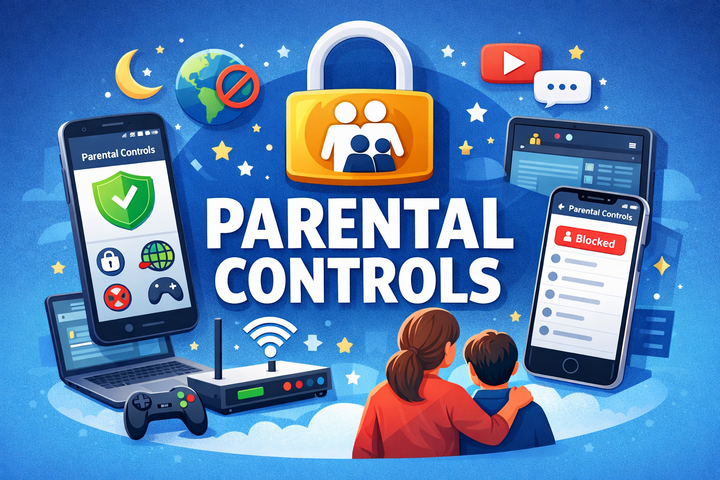
Parental controls prevent children against unsuitable content, unnecessary use of screens, as well as unprotected interaction on these internet sites. Parents may, however, wish to switch parental controls off on occasions such as when a child has matured, or a device switches hands or when restrictions are unnecessary.
We are going to take you through simple step-by-step instructions on how to turn off parental controls on Android devices, iPhones, and PCs, and also provide you with some valuable tips that you should not ignore before switching these controls off.
Why You May Want to Turn off Parental Controls.
Your child has grown up to be big enough to have fewer restrictions.
You are troubleshooting the access to websites or apps.
The system has been transferred to an adult.
You would like to update/ reset control settings.
Caution: Therefore, it is always important to make sure that you are using the correct parental control PIN, password, or account credentials.
How to Disable Parental Controls on Android
Parental controls are normally achieved via Google Family Link or Play Store restrictions on Android gadgets.
At Google Family Link, disabling Parental Controls can be done.
locate the Family Link app on the device of the parent.
Select your child’s account
Tap Controls Account settings.
Choose Account supervision
Tap Stop supervision
Follow the instructions on the screen and type in your password with Google.
The parental controls on the Android device of the child will be completely removed once it is completed.
Option 2: Disable the Parental Controls in Google Play Store.
Open the Google Play Store
Click your profile picture Settings.
Click on Family Select Family -Parental controls.
Toggle Parental controls disabled.
Enter your PIN to confirm
Turning off parental control on the iPhone (iOS)
Apple devices have parental controls in the form of Screen Time.
How to Turn off Screen Time Parental Controls
Open Settings on the iPhone
Tap Screen Time
Choose the name of your child (in case of Family Sharing)
Tap Turn Off Screen Time
Input the Passcode of Screen Time.
It will turn off any content blockages, application restrictions and downtime.
Alternative: Disable Specific Restrictions.
Maybe you do not want to turn it all off:
Go to Settings Screen time Content and Privacy Restrictions.
Switch off certain functions like application limitations or browser filters.
Disabling Parental Control on a PC (Windows)
Parental controls are usually administered in Windows PCs using Microsoft Family Safety.
How to switch off Parental control on Windows
Visit Microsoft Family Safety through your browser.
Enter the parent Microsoft account.
Select your child’s profile
Select Screen time, App & game limits or Content filters.
Switch off the restrictions you do not need.
Updates on the PC are made immediately, and one can see them on the child device.
Things to Pay attention to Before Switching off Parental Controls.
Remember not to switch parental controls off entirely, the following are the reasons why:
Discuss internet security and safety usage with your child.
One of the things is to consider eliminating certain restrictions rather than all controls.
Periodically check browsing patterns and screen time.
Parental controls should be used as a guide, and not only as a restriction.
Final Thoughts
This knowledge of how to disable parental controls on Android, iPhone, and PC can help the parent to have flexibility as their children develop and technology has to evolves. Whether you are putting some controls out of commission or permanently, it should always be in relation to the digital maturity and the safety requirements of your child.