How to Effectively Set Up YouTube Parental Controls in 4 Easy Steps
Posted by Safer Loop
Filed in Other 1K views
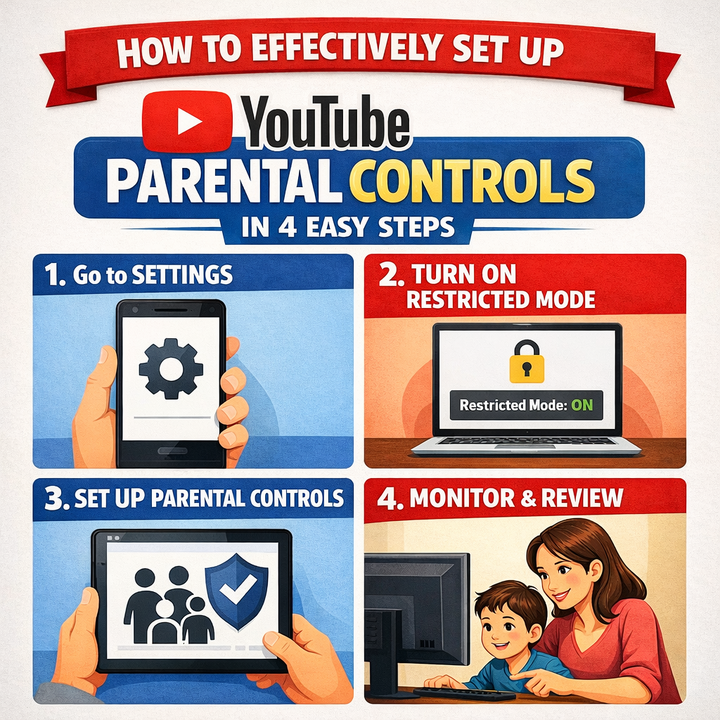
One of the most common platforms among children and teens is YouTube. Although it provides learning videos, instructions, and entertainment, it may also introduce children to inappropriate content, advertisements, or too much screen time. This is why all parents must install YouTube parental controls.
It takes you only 4 simple steps to guarantee that your child enjoys YouTube. Let’s walk through them.
The Importance of YouTube Parental Controls
Children are free to:
Watch mature or indecent material by mistake.
Experience negative remarks or advertisements.
Wastes time on watching videos.
Access content that is not age-appropriate.
YouTube parental controls assist parents in filtering content, regulating screen time, and make viewing safer.
Step 1: Sign up for a Google Account for Your Child.
To enable parental controls, your child will require a Google account with Family Link.
How to do it:
Visit Google Family Link
Sign up Google account on behalf of your kid.
Connect it with your parent account.
Why this matters:
A child account will enable you to manage YouTube settings, screen time and content limits remotely.
Step 2: YouTube Kids with Younger Children.
YouTube Kids is the safest for children below the age of 13.
How to set it up:
Install the YouTube Kids app.
Sign in using your child's Google account.
Select your child’s age group
Allow content approval (not mandatory)
Benefits of YouTube Kids:
Age-appropriate videos only
No adult comments
Stronger content filtering
Permission of parents to search and channels.
Step 3: Switch On YouTube Restricted Mode.
In the case of younger children who use regular YouTube, Restricted Mode blocks adult content.
To enable the Restricted Mode:
Open YouTube
Click on the profile icon
Select Settings
Turn Restricted Mode ON
Secure it using your mother's Google account.
Hint: Restricted Mode is not the best, but it will greatly minimize exposure to explicit videos.
Step 4: Control On-screen Time and Content using Family Link.
Family Link will provide you with all the controls to use and limit your child's usage of YouTube.
With Family Link, you can:
Set daily screen time limits
Bedtime restrictions can also be scheduled.
Monitor watch history
Block videos and channels or allow.
How to use it:
Open Google Family Link
Select your child’s account
Click on Controls YouTube Settings.
Personalize limits and permissions.
Additional Advice on Making YouTube Safer.
Turn off autoplay so that you do not watch the same video over and over.
Look back at the history.
Discuss your viewing safety with your kid.
Promote learning and imaginative material.
Final Thoughts
YouTube parental controls do not necessarily need to be complex. With these 4 simple steps, you can make your child experience a safer and healthier YouTube without necessarily eliminating the fun.
The parental controls should be used together with open communication and frequent supervision. Be engaged, be aware, and make your child have fun on YouTube in a way that is responsible.