MacBook Air Pixel Problem: A Guide to Better Screen Troubleshooting
Posted by summy steve
181 views
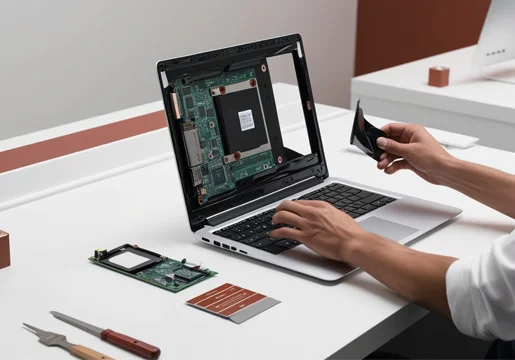
The display is one of the most important parts of a MacBook Air. A sharp screen makes reading easier, improves video quality, and provides accurate details when working with photos or graphics. However, a small display defect can affect the experience. A MacBook Air pixel problem may appear as a tiny dark dot, bright spot, colored pixel, or unusual mark that remains visible on the screen.
Finding a strange spot does not automatically mean the entire display has failed. The problem may involve one defective pixel, a temporary software glitch, physical pressure, or damage to the display panel. Learning how to identify the symptoms can help you decide whether basic troubleshooting is enough or professional repair is necessary.
What Is a MacBook Air Pixel Problem?
A pixel is one of the tiny points used to create an image on a digital display. Your MacBook Air screen contains millions of these points working together to display text, photographs, videos, and graphics.
When one pixel does not work correctly, it may become visible as a small dot.
A pixel problem can appear as:
-
A black dot that never changes
-
A bright white dot
-
A red, green, or blue dot
-
A pixel that flickers
-
A small group of defective pixels
-
A dark patch
-
An area with unusual colors
The appearance of the problem can help determine what may be happening inside the display.
Dead Pixel vs. Stuck Pixel
Dead and stuck pixels are two common types of display defects.
A dead pixel generally appears black because it is not producing the expected light or color. It normally remains in the same state regardless of the content displayed on the screen.
A stuck pixel can remain on a particular color. It may appear red, green, blue, white, or another color.
A stuck pixel may sometimes respond to troubleshooting, while a dead pixel is generally considered a hardware issue.
Why Do Pixel Problems Happen?
Several factors can contribute to a pixel problem.
Display Manufacturing Defects
A display panel can occasionally contain a defective pixel because of manufacturing variation.
If the defect appears shortly after buying your MacBook Air, check the applicable warranty and service options. Avoid paying for a repair before confirming whether your device is covered.
Physical Impact
Accidental drops can damage the display.
A screen does not necessarily need to crack for internal damage to occur. An impact can affect the panel and cause black spots, lines, discoloration, or defective pixels.
If the problem began after an accident, professional inspection can help determine the extent of the damage.
Excessive Pressure
Pressure on the screen can damage delicate internal display layers.
Putting heavy objects on a closed MacBook or carrying it in an overcrowded backpack can create unnecessary pressure.
A protective sleeve can reduce the risk of pressure-related damage during transportation.
Liquid Exposure
Liquid can damage electronic components inside a MacBook Air.
A spill may affect the display or other internal hardware. Some liquid-related problems appear immediately, while others develop later.
If your MacBook has been exposed to liquid, professional inspection is recommended.
How to Recognize a True Pixel Defect
Before assuming that a screen spot is a defective pixel, inspect it carefully.
Open an image with a solid white background. Look for dark or colored points.
Then test black, red, green, and blue backgrounds.
Watch the same physical location as you change the background.
If the spot remains black, it could be a dead pixel. If it remains a particular color, it could be a stuck pixel.
If the mark changes position or disappears when you change applications, the issue may be related to software rather than the physical display.
Test the Display With Different Content
Another useful test is to open different types of content.
Use a browser, text editor, video, image, and system settings window.
Move each window across the affected area.
If the problem remains fixed to the same physical location on the screen, the display hardware is more likely to be involved.
If it appears only in one application or with a particular type of content, investigate the software first.
Take a Screenshot
Screenshots can help determine whether a problem originates from the display or the software.
When you see the defect, take a screenshot and open the file on another device.
If the unusual mark appears in the screenshot, the problem may be related to the image generated by software or the graphics system.
If the screenshot appears normal on another device while the MacBook Air screen still shows the defect, the physical display may be responsible.
This test is simple and can provide useful information before professional diagnosis.
Restart Your MacBook Air
Temporary graphical problems can sometimes resemble pixel defects.
Restart your MacBook Air and check the display after macOS starts again.
If the problem disappears, it may have been caused by a temporary software or graphics issue.
If the same dot remains in exactly the same location, the display itself may need further investigation.
Restarting is a quick troubleshooting step and does not require opening the computer.
Update macOS
Keeping your operating system updated can help prevent software-related display issues.
Open System Settings, select General, and then choose Software Update.
If an update is available, install the compatible version and restart the computer.
A software update will not repair a physically damaged pixel. However, it can help eliminate bugs that cause graphical artifacts, flickering, or unusual screen behavior.
Can a Stuck Pixel Be Repaired?
A stuck pixel may occasionally respond to a pixel-refresh technique.
Some tools display rapidly changing colors in an attempt to restore the pixel's normal behavior.
Results vary, and there is no guarantee that these techniques will work.
If you try a software-based method, avoid excessive brightness or prolonged use. Most importantly, never press the affected area.
A dead pixel is generally not something that software can restore.
Why You Should Avoid Pressing the Screen
Some DIY guides recommend rubbing or pressing a stuck pixel.
This is risky.
MacBook Air displays contain delicate layers that can be damaged by pressure. Pressing the panel can create additional pixel defects or cause a larger area of damage.
A small screen problem may become significantly more expensive if the display is physically damaged during an attempted repair.
Use software troubleshooting first, and seek professional help when necessary.
When Should You Visit a Repair Professional?
Professional diagnosis is a good idea when the problem persists or becomes worse.
You should consider getting your MacBook Air inspected if you notice:
-
Several dead pixels
-
Several stuck pixels
-
A spreading black area
-
Horizontal lines
-
Vertical lines
-
Screen flickering
-
Severe color distortion
-
A partially blank display
-
A cracked screen
-
Damage following an accident
-
Problems after liquid exposure
These symptoms may indicate that the issue is larger than a single pixel.
Is Display Replacement the Only Solution?
Not always.
A single minor pixel defect may not require immediate replacement if the MacBook remains fully usable.
However, significant display damage may require replacement of the affected display assembly.
Individual pixels are not normally replaced separately during standard MacBook Air repair. A technician may instead replace the appropriate display component if the panel has failed.
A proper diagnosis should come before any expensive repair.
Check Warranty Options First
If your MacBook Air is still relatively new, check the manufacturer's warranty or available service coverage.
A manufacturing-related defect may have different coverage from accidental damage.
Before paying an independent technician, determine whether your device qualifies for an official service option.
Keep your purchase information and other relevant documentation available if needed.
Protecting Your MacBook Air Screen
Proper handling can reduce the chance of future display problems.
Use a protective sleeve when transporting the MacBook Air. Do not place heavy objects on top of it.
Check the keyboard area before closing the lid. Make sure no cable, pen, earbud, or other object is trapped between the screen and keyboard.
Keep liquids away from the computer.
When cleaning the screen, use a clean, soft, lint-free cloth. Wipe gently rather than pressing firmly.
Avoid touching or pushing the display unnecessarily.
Back Up Your Data Before Repair
If your MacBook Air needs professional service, create a backup before handing it over.
Important information can include work documents, photos, videos, school projects, business files, and other personal data.
A current backup gives you additional protection during the repair process.
You can also photograph the affected area of the screen. This can help you document what the display looked like before service.
Final Thoughts
A MacBook Air pixel problem can be frustrating, but it does not always mean that you need an expensive screen replacement. A single defective pixel may be isolated, while other display symptoms can indicate physical or electronic damage.
Start by examining the screen with different background colors. Check multiple applications, take a screenshot, restart the MacBook, and install available macOS updates.
Avoid pressing, rubbing, or tapping the affected pixel. DIY pressure-based methods can cause additional damage to the display.
If the problem persists, spreads, or appears alongside lines, flickering, black spots, or discoloration, professional diagnosis is the safest choice. A technician can determine the likely cause and recommend the most appropriate solution.
With careful handling, regular maintenance, and timely troubleshooting, you can protect your MacBook Air display and reduce the risk of more serious screen problems.