How to Set Up TheOneSpy in 5 Simple Steps
Posted by Franklin calinton
Filed in Technology 463 views
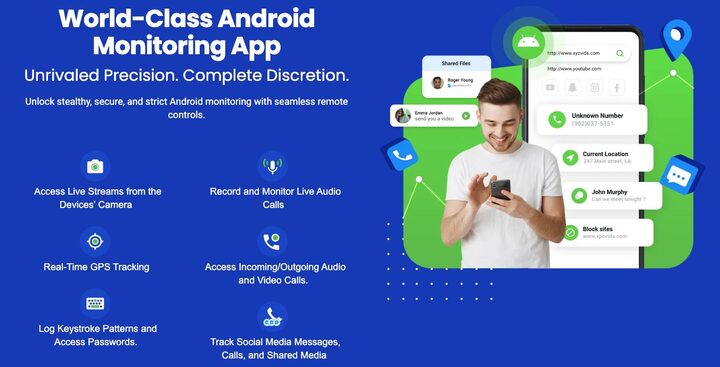
Setting up TheOneSpy monitoring software doesn't have to be complicated. This guide walks parents and employers through a straightforward 5-step process to get TheOneSpy running on any device quickly.
You'll learn how to prepare your device and handle the initial download requirements, plus we'll cover creating your account and selecting the right monitoring plan for your needs. We'll also show you how to configure your monitoring settings so you can track exactly what matters most to you.
By the end of these simple steps, you'll have full access to your monitoring dashboard and can start keeping tabs on device activity right away.
Prepare Your Device and Download Requirements
Check device compatibility and operating system requirements
Before starting your TheOneSpy setup, verify that your target device meets the minimum system requirements. TheOneSpy works with Android devices running version 4.0 or higher and iOS devices with version 9.0 or later. Check the device's current operating system by navigating to Settings > About Device on Android or Settings > General > About on iOS. Make sure you have administrator access or the device password, as you'll need elevated permissions during installation.
Free up storage space for smooth installation
Clear at least 50MB of storage space on the target device to prevent installation errors. Delete unnecessary photos, videos, or unused apps through the device's storage management settings. Cache files and temporary data can also be cleared to create additional room. Having adequate storage space prevents the installation from failing midway and helps the monitoring app run smoothly without performance issues.
Download TheOneSpy app from official website
Visit the official TheOneSpy website using a secure browser and navigate to the download section. Avoid third-party download sites or app stores, as they may contain modified or malicious versions of the software. The official website provides the latest, authentic version with all security features intact. Save the installation file to an easily accessible location on your device for quick installation later.
Ensure stable internet connection for setup process
A reliable internet connection is crucial for downloading the app, activating your license, and syncing initial settings. Connect to a strong Wi-Fi network or ensure you have sufficient mobile data coverage. Poor connectivity can cause download interruptions, incomplete installations, or activation failures. Test your connection speed beforehand and avoid peak usage hours when network traffic might be heavy, which could slow down the setup process.
Create Your TheOneSpy Account and Choose Plan
Register with valid email address and secure password
Start by visiting TheOneSpy's official website and clicking the sign-up button. Enter a working email address you check regularly, as you'll receive important account notifications and verification links. Create a strong password combining uppercase letters, numbers, and special characters to protect your monitoring data from unauthorized access.
Select monitoring plan that fits your needs
TheOneSpy offers multiple subscription tiers based on device types and features. The basic plan covers essential monitoring like call logs and text messages, while premium plans include GPS tracking, social media monitoring, and remote device control. Compare features against your specific monitoring requirements and budget before making your selection.
Complete payment verification for premium features
Once you've chosen your plan, proceed to the secure checkout page. TheOneSpy accepts major credit cards and PayPal for payment processing. After successful payment, you'll receive an email confirmation with your license key and download instructions. This verification step activates your premium monitoring capabilities and ensures uninterrupted service access.
Install TheOneSpy on Target Device
Enable installation from unknown sources in device settings
Navigate to your Android device's Settings menu and locate "Security" or "Privacy" settings. Look for the option labeled "Unknown Sources" or "Install unknown apps" and toggle it on. This allows your device to install applications from sources other than the Google Play Store, which is essential for installing TheOneSpy's APK file.
Run the APK file and grant necessary permissions
Locate the downloaded TheOneSpy APK file in your device's file manager or Downloads folder. Tap the file to begin installation and follow the on-screen prompts. The app will request various permissions including access to contacts, messages, location, and device administration. Grant all requested permissions to ensure full monitoring functionality works properly.
Complete initial device configuration
Launch the newly installed TheOneSpy application and enter your account credentials created in the previous step. The app will guide you through a setup wizard that configures monitoring parameters and establishes connection with TheOneSpy servers. Allow the app to complete its initial sync process, which may take a few minutes depending on your internet connection speed.
Hide the app icon for discreet monitoring
After successful installation and configuration, access the app's settings menu to enable stealth mode. Toggle the "Hide App Icon" option to remove TheOneSpy from the device's app drawer and home screen. The application will continue running in the background while remaining invisible to the device user, ensuring discreet monitoring operations without detection.
Configure Monitoring Settings and Preferences
Set up real-time location tracking features
Access the location settings panel and enable GPS tracking to monitor the target device's movements continuously. Configure geofencing boundaries around important locations like home, school, or work to receive instant alerts when the device enters or exits these zones.
Enable call and message monitoring options
Navigate to the communication settings and activate call recording, SMS tracking, and multimedia message monitoring. You can choose to record all calls or set specific contact filters to focus on particular phone numbers or time periods.
Activate social media and app usage tracking
Turn on monitoring for popular platforms like WhatsApp, Facebook, Instagram, and Snapchat through the social media dashboard. Select which apps you want to track and configure screen time limits or usage alerts for specific applications.
Customize alert notifications for specific activities
Create personalized alerts for keywords in messages, specific contact interactions, or unusual device behavior. Set notification preferences for email, SMS, or in-app alerts, and choose the urgency level for different types of activities you want to monitor.
Establish data sync frequency for optimal performance
Adjust the synchronization settings to balance real-time monitoring with battery life and data usage. Choose between instant sync for critical activities or scheduled updates every few hours for less urgent information, depending on your monitoring needs and device capabilities.
Access Your Dashboard and Start Monitoring
Log into your online control panel from any browser
Open your web browser and navigate to TheOneSpy's login page using the credentials you created during account setup. The dashboard loads instantly, displaying real-time data from the monitored device. Your control panel works seamlessly across all browsers and devices, giving you 24/7 access to monitoring information from anywhere with an internet connection.
Navigate through different monitoring categories
The dashboard organizes all collected data into intuitive categories like calls, messages, location tracking, and app usage. Click through each section to view detailed logs, timestamps, and comprehensive activity reports. The interface presents information clearly, making it easy to find specific data or browse general usage patterns without getting overwhelmed by technical details.
Set up automated reports and data exports
Configure scheduled reports to receive daily, weekly, or monthly summaries directly in your email inbox. The system automatically compiles data into professional reports, highlighting key activities and trends. You can also export raw data in multiple formats for offline analysis or record-keeping. Custom alert settings notify you immediately when specific activities occur on the monitored device.
Setting up TheOneSpy really comes down to these five straightforward steps: getting your device ready and downloading what you need, creating your account and picking the right plan for you, installing the app on the device you want to monitor, tweaking your settings to match what you're looking for, and finally jumping into your dashboard to see everything in action. Each step builds on the last one, making the whole process pretty smooth once you get started.
Now that you know exactly what's involved, you can make an informed decision about whether TheOneSpy fits your monitoring needs. The setup might seem like a lot at first glance, but breaking it down into these manageable chunks makes it much less overwhelming. Take your time with each step, and you'll have your monitoring system up and running before you know it.